A Saturday rush is underway when the second shop calls: it needs a product the first shop has in its stockroom. The first till says there are three left, but it can't tell the manager how many are at each branch or whether another cashier has already sold one. The owner now has two tills to watch and a new question to answer: where is the stock, who can see it, and how does a transfer get recorded?
That's the practical change behind choosing POS software for multiple locations. A second shop isn't just another checkout counter. It creates separate stock, staff access and reports that still need to add up to one business.
Table of Contents
- What a Second Shop Changes
- Checks to Make Before the Second Till
- Evaluation Questions and Scoring Matrix
- How Stocky POS Handles Locations
- Deployment Options, Licence and Who Runs the Server
- What Stocky POS Does Not Do
- Choose the Setup That Matches Your Shops
What a Second Shop Changes
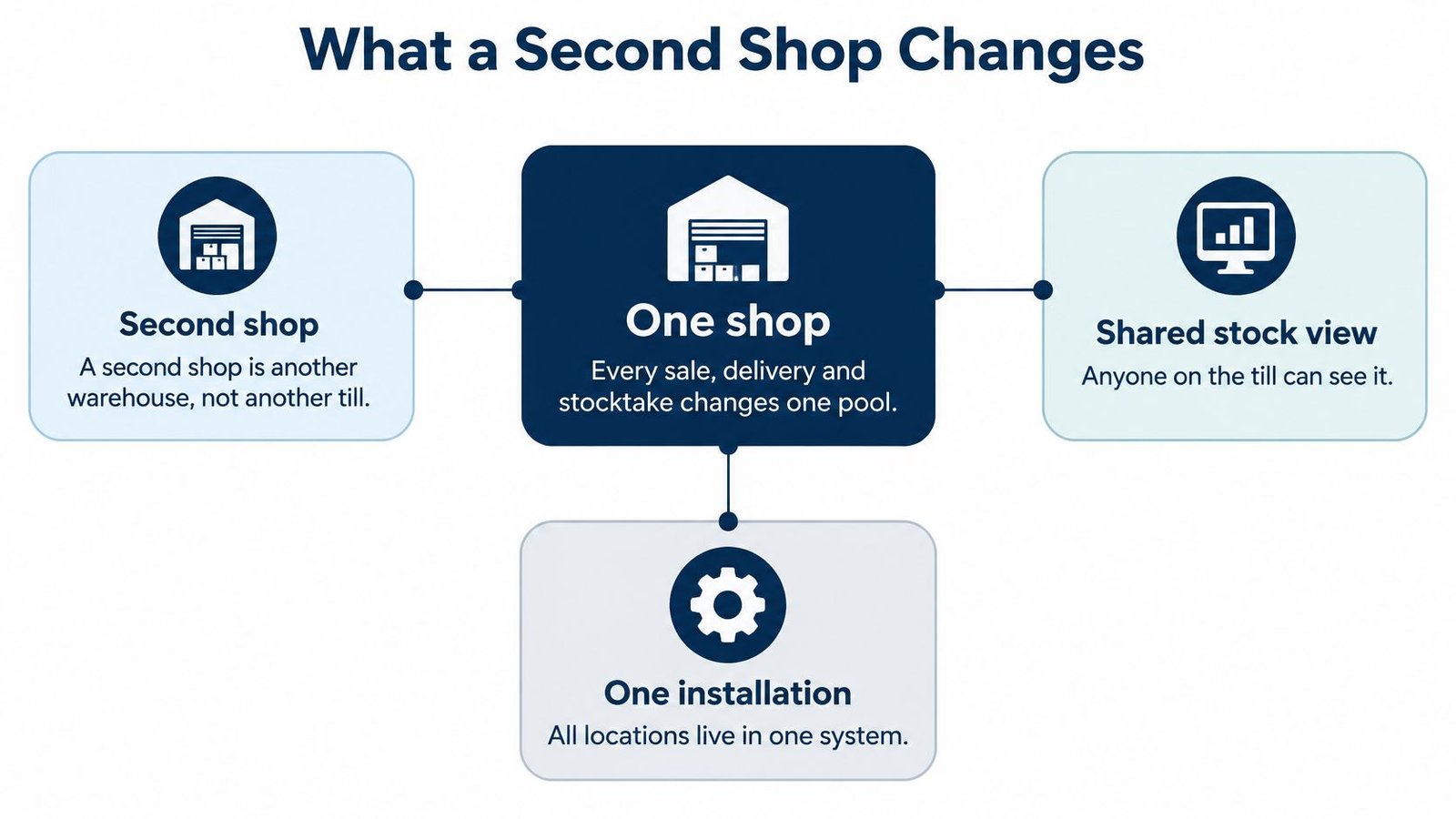
On the Saturday your second shop opens, a familiar habit starts to break. At one shop, every delivery, sale and stocktake changes the same pool of stock. Add another location, and “three left” is no longer useful unless you know where those three units are.
A POS system needs to keep a separate count for each location while giving the owner a way to see the business as a whole. Stocky POS calls each location a warehouse. A warehouse can represent a shop, stockroom, van, market stall or another physical location, and quantities, sales, purchases, transfers, adjustments, alerts and reports can be assigned to it. The Stocky POS location model also allows access to be limited by warehouse, so a cashier can work in one branch while a manager can switch between several.
At the till, that means a cashier in the high-street shop can sell from that shop's stock rather than accidentally changing the mall branch's count. For the owner, it means checking each warehouse's figures and then looking at the firm's combined view. The software needs to make both views useful, not just put a large total on a dashboard.
One shop compared with two or more
| Question | One shop | Two or more shops |
|---|---|---|
| Where stock lives | One pool for the business | A quantity in each warehouse |
| Who can see it | Any cashier can see the whole shop | Users can be limited to specific warehouses |
| Moving goods | No transfer needed | Transfer with status pending, sent or completed |
| When stock is available | Available as soon as it's in the shop | Leaves the source at once and arrives only when the transfer is completed |
| Reports | One set of figures | Per-warehouse reports, then a view of the firm |
| Selling price by shop | Not required | Not documented for Stocky POS, so don't assume location prices |
The transfer row deserves attention. If one shop sends a box of stock to another, the stock leaves the source when the transfer is sent. The receiving shop can't count it as available until the transfer is completed. That distinction prevents stock on the road from appearing ready to sell at both locations.
Adding shops also adds the need for clear permissions. Employees should see the locations they need for their jobs, while the owner keeps a business-wide view. The important buying test isn't whether a system has a bigger dashboard. It's whether the counts, access rules and transfers match what's happening on the shop floor.
Checks to Make Before the Second Till
A second shop can have the right total stock figure and still run short at the till. Check each location's records against the goods on hand before relying on combined reports.
Assign each location its own warehouse. Create a warehouse for each shop, stockroom, van or stall, and enter opening stock where it physically belongs. A carton in a delivery van should not inflate the shelf count at either shop. Pass: a sample item's record matches the place where you can find it.
Test staff access. Give each employee access to the warehouses their job requires. Use separate accounts for cashiers, stock clerks and owners. Pass: a cashier at branch A cannot see or adjust branch B's stock if their role should not allow it.
Check a per-warehouse report. Choose a product, run a report for one location and compare its quantity with a hand count. A business-wide total can hide a mismatch between shops. Pass: the report and shelf count agree, or you can identify and explain the difference.
Run a transfer from start to finish. Record the origin, destination, date, items and any shipping cost. Check how your setup represents a transfer while goods are travelling, and when the receiving shop can count them as available. A transfer is not an instant stock move. Pass: the receiving branch does not treat goods in transit as ready to sell.
Test offline selling. Disconnect a till, ring a sale, then reconnect and check that it syncs. Also test what happens if two offline tills each sell what looks like the last unit. Pass: staff know what syncs later and how to reconcile any conflicting counts.
Before opening the second till, import products and opening stock from CSV or Excel, then compare a sample with the shelves. If a check fails, correct the setup before staff rely on it. Accurate counts and clear permissions matter more than a larger dashboard.
Evaluation Questions and Scoring Matrix
Use the same questions for every POS vendor. Score each answer from 1 to 5, where 1 means the answer doesn't meet your needs and 5 means it does. The weights below are a suggested starting point for a business with a small number of shops. Adjust them if your main risk is different, and note why you gave each score.
| Criterion | Question to ask | Weight | Score (1–5) |
|---|---|---|---|
| Stock by location | Is every quantity, sale and adjustment tied to one warehouse? | 25% | |
| User limits | Can a user see and adjust only the warehouses assigned to them? | 20% | |
| Per-location reporting | Can a report run for one location and match a hand count? | 20% | |
| Transfers | Are origin, destination, status and shipping cost recorded, and is stock in transit kept out of availability? | 15% | |
| Offline behaviour | What queues on the device, what needs the server, and what happens to the last unit? | 10% | |
| Hosting and backups | Who runs the server and who backs up the data? | 5% | |
| Licence cost | Is the price one-time or subscription, with any fee per till, user or shop? | 5% | |
| Total | Sum of weighted scores | 100% |
For each row, multiply the score by the weight, then add the weighted results. For example, a score of 4 on a criterion weighted at 25% contributes 1 point to the total. Use the same method for every product, and compare the totals rather than letting an impressive feature list settle the decision.
For a broader view of what retail systems need to support at the checkout and beyond it, see this guide to POS software for retail. Keep the questions tied to your own shop-floor tests: a vendor's “offline” description matters less than seeing what happens to a queued sale and the last unit during a real connection failure.
How Stocky POS Handles Locations
A second shop may hold only a few items that the first shop needs. Stocky POS represents shops as warehouses in one installation, so stock and reports can be associated with each location. Staff can also be limited to the warehouses they work in.
Transfers have pending, sent and completed statuses, with an optional shipping cost. When a transfer is marked sent, the stock leaves the source warehouse; it appears at the destination when staff complete the transfer. The handoff therefore needs staff to receive the goods and update the record. The system tracks the transfer, but does not make the physical movement instant.
At the till, the touch-first register supports split payments and offline selling. Sales sync when the connection returns, though two offline tills could both sell the last unit before either syncs. Test how your team will check stock and handle that conflict. USB and Bluetooth barcode scanners work without drivers; camera scanning requires HTTPS.
Products can have size or colour variations, batches, expiry dates, or serial and IMEI tracking. For example, a phone shop can require a separate IMEI for each handset, while a grocery till can weigh produce. Loyalty points and product combos are also included.
The online store syncs with WooCommerce and Shopify. Double-entry accounting includes QuickBooks and Xero sync, and products, opening stock, purchases and sales can be imported from CSV or Excel. See the Stocky POS retail tools to compare features with your shop's needs. A clinic has different checkout requirements; this guide to point of sale systems for clinics covers that setting.
Stocky Mobile is a native app for Android and iOS, sold separately, that connects to a self-hosted Stocky server. It supports dashboard checks, product lookup, payment recording and register sales from a phone. For installation details and requirements, see the Stocky POS download and requirements page.
See the register and inventory workflow in the product video:
Deployment Options, Licence and Who Runs the Server
A second shop can share one Stocky POS installation, and the owner can choose who runs its server. Stocky POS is a one-time purchase, with no per-till, per-user or per-warehouse fee. Check the Stocky POS page for current licence options and pricing. UI Lib's managed hosting costs $12 a month: Stocky POS runs on UI Lib's dedicated servers, which UI Lib manages with regular backups and security, installation is free, and you only buy a domain. If you would rather use your own hosting, the installation service is a one-time $50.
| Setup | What it means | Best fit |
|---|---|---|
| Self-hosted, one shared database | One installation holds the business's records, with a warehouse for each shop. | Branches that need a shared system and location-level stock. |
| Separate servers by location | Each shop runs its own server and database, with a separate way to sync information across sites. | Shops that need to keep operating during a link failure and can manage multiple systems. |
| Multi-tenant SaaS | A platform serves multiple businesses, each with its own workspace. | Providers building a subscription service for several businesses. |
| Hybrid | Local systems support selling, while reporting happens elsewhere. | Shops with weak connections that can maintain more than one system. |
Stocky POS is self-hosted. Its server requirements are listed on the Stocky POS download and requirements page. If you prefer not to manage the server, UI Lib's managed hosting runs it for you. The software remains self-hosted rather than vendor-hosted cloud POS, so the database stays yours.
A vendor-hosted subscription system may suit an owner who does not want to run a server, but it relies on the vendor's hosting and data-handling terms. Managed hosting gives the same hands-off setup while you keep a one-time licence. For a closer look at the differences, read this guide to on-premise and cloud ERP.
What Stocky POS Does Not Do
At two shops with weak or lost connectivity, each offline till works from what it knows locally. Two tills can therefore sell the last unit before either sale syncs. Queued sales wait on the device for synchronization, so staff need a process for checking stock and reconciling sales when the connection returns. The Stocky POS offline documentation covers offline selling and synchronization.
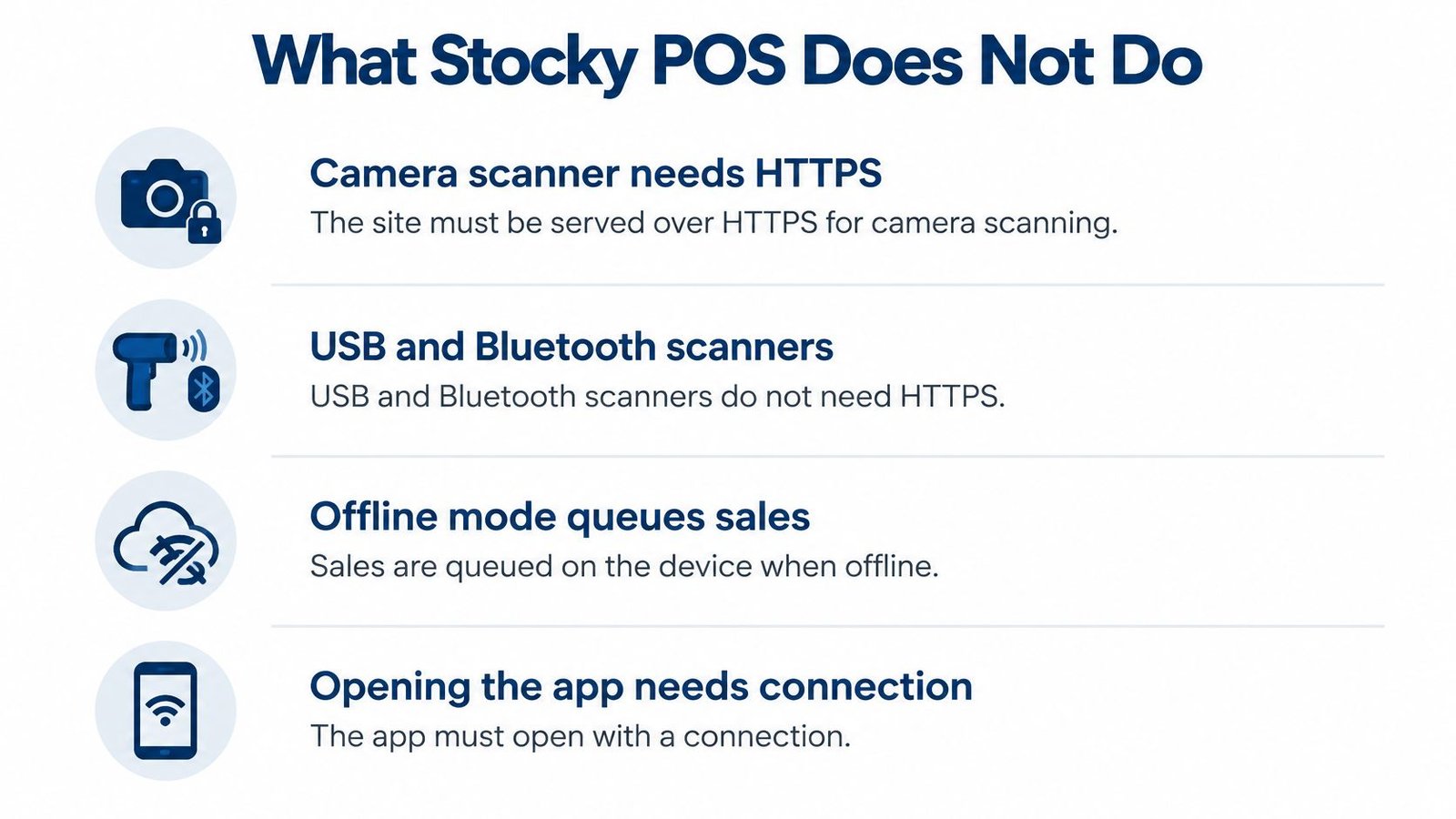
Transfers also require a handoff. Stock leaves the source warehouse when a transfer is sent, and the destination should not treat it as available until the transfer is completed. Staff still need to receive the goods and reconcile what arrived. The system records the movement; it cannot confirm that the box reached the other shop.
Limits to check before rollout
The camera scanner requires HTTPS. USB and Bluetooth barcode scanners work without drivers, while the camera option needs the site to be served securely. If staff will scan with a phone camera at the till, check the site setup first.
Stocky Mobile is a native Android and iOS app, sold separately, for a self-hosted Stocky server. It supports dashboard checks, product lookup by name, code or barcode, payment recording, and register sales from a phone. A mobile-friendly browser view and the native app are different ways to access the system.
Stocky POS is designed for retail counters. Restaurants and cafes may fit Resto better, with its kitchen display, table service, recipe-based inventory, delivery, reservations and online ordering.
The available product information does not establish whether selling prices can differ by location. Nor does it provide a customer count, benchmark or case study showing how another retailer's rollout performed. Check the location-level pricing your shops need during evaluation.
On your own hosting, you or your host handle server security and backups; on UI Lib's managed hosting, regular backups and security are part of the service. Either way, shops need staff routines for recovering after a network outage, reconciling queued sales, receiving transfers and counting stock. Software can keep records in one system, but accurate records still depend on the work at each shop.
Choose the Setup That Matches Your Shops
For retail shops that need one program, a warehouse per location, and a one-time licence without per-till or per-user fees, Stocky POS is a setup to consider. Review the Stocky POS retail product page for the current price, then use the live demo linked from that page to test a location-level report, staff permissions and a transfer.
A restaurant or cafe should choose Resto instead, because its tools are designed for kitchen display, tables, recipes, delivery, reservations and online ordering. A cloud POS is a better fit if you want the vendor to manage hosting, uptime and backups under a monthly subscription; UI Lib's managed hosting is the alternative if you prefer to keep a one-time licence. Separate location servers or a hybrid setup are worth considering when each shop must keep selling through long outages and you're prepared to manage the extra systems.
Before signing, replay one real operating week against your checklist. Set up one warehouse for each shop, test a user limited to one warehouse, leave a transfer at sent status to see how stock is represented, and ring a sale while the connection is down. Score each setup with the matrix, and choose the one whose stock counts and permissions hold up under those conditions.
UI Lib offers self-hosted retail POS and inventory software, plus managed hosting and an installation service for owners who don't want to manage the server themselves. Visit UI Lib to review the retail setup and test whether its warehouse, transfer and access controls fit your shops.